0
Les Relais
30 minutes ago
7 min
19

I'm sharing my graphics options, but that shouldn't stop you from doing your own testing. It's also possible to modify the options directly on your graphics card for Warframe, but I haven't done that. I have an old video from when I was on Nvidia with my 3070here's the link.I hope this helps you better understand the settings, and if I made any mistakes or you have any comments, write to me on stream or on Discord.
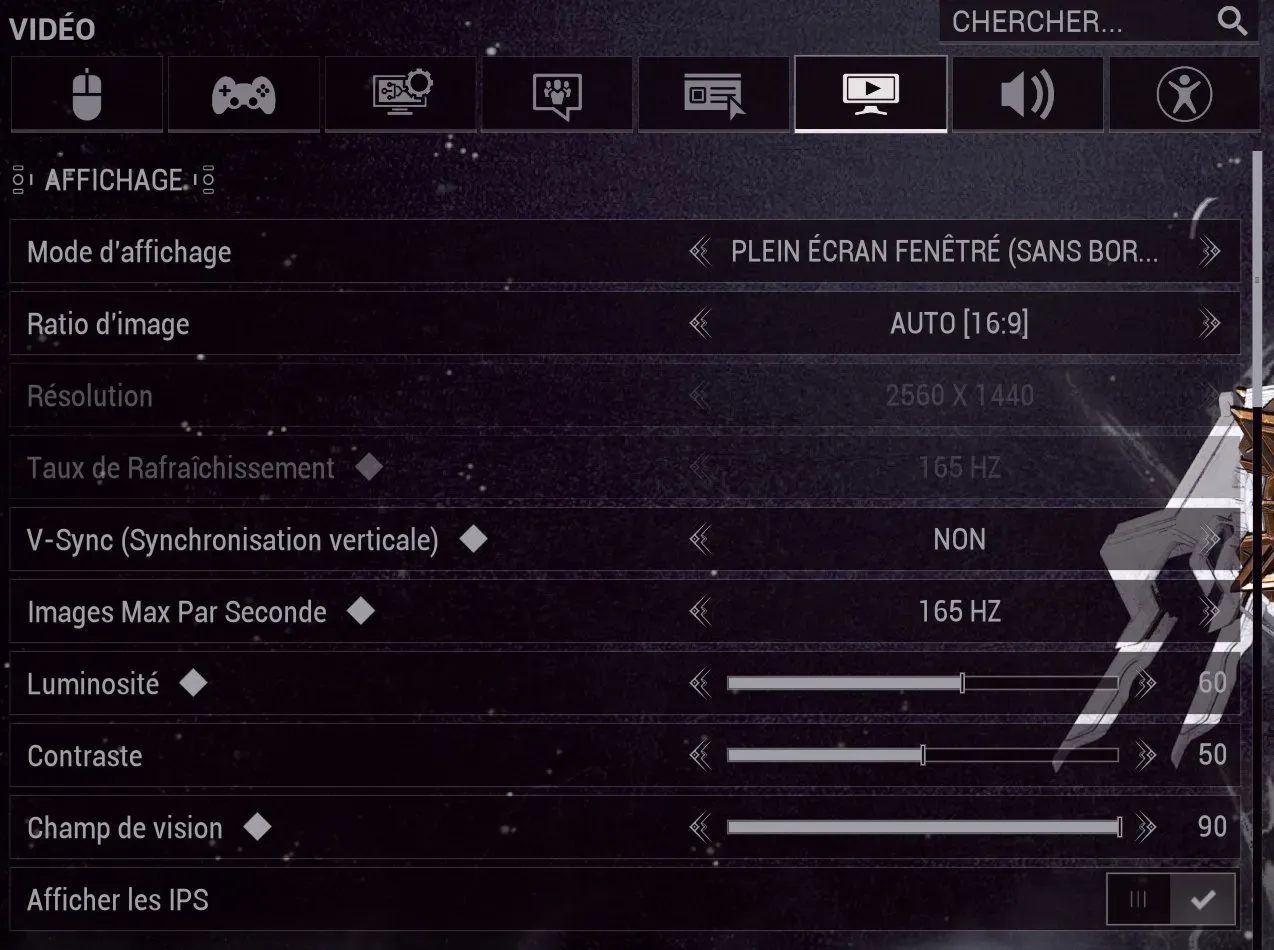
Display ModePrioritize Fullscreen Windowed (Borderless). More stable when alt-tabbing, essential if you stream since we switch often.
Aspect RatioI leave it on auto, it's not important since I'm in fullscreen windowed.
V-SyncIt adds latency without real benefit. For more efficiency, also go to your graphics card options and disable it there as well.
Max Frames Per SecondThe more you increase this option, the more your CPU suffers. Leave it identical to your refresh rate. There are still game modes like endo farming in the arena on Sedna where it's interesting to increase it if you play Nidus.
Brightness / ContrastIt's purely subjective.
Field of ViewThe more you increase this option, the wider your view of the gameplay.
Show FPSUseful for seeing your FPS in a mission, it reminds you if too many programs are running in the background. The ping is also visible, useful in groups. If there's too much with randoms, it's better to leave and come back with another group.
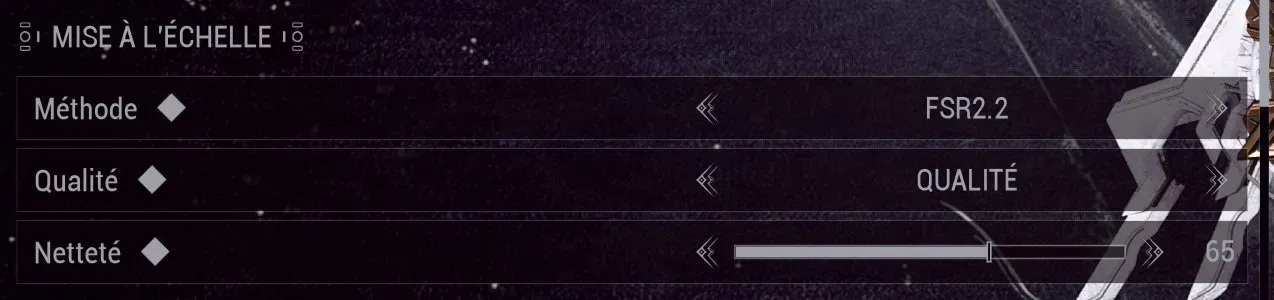
MethodOn AMD cards, use FSR 2.2, it's the best native choice. On Nvidia cards, prioritize DLSS if available.
QualityQuality mode offers a noticeable FPS gain, with a virtually imperceptible visual loss in motion. Switch to Balanced if you still lack FPS.
SharpnessBetween 60 and 70 is good. Below that the image becomes strange, above that the outlines become artificial.
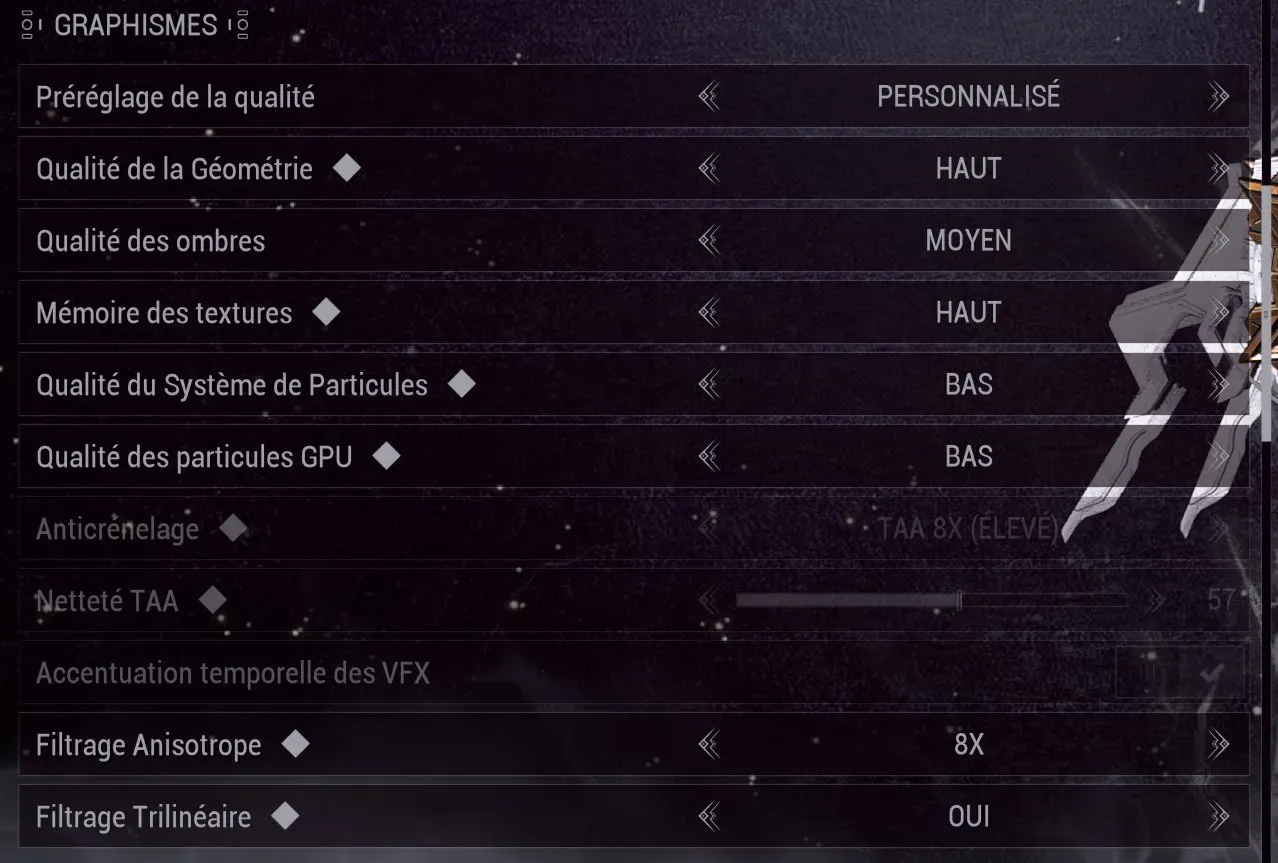
Geometry QualityOn High, it maintains the level of detail of 3D models at a distance but it consumes power. Switch to Medium if you're struggling.
Shadow QualityMedium is a good compromise. High brings little visible difference in gameplay and is expensive in GPU.
Texture MemoryHigh if you have 8 GB of VRAM or more. Below that, switch to Medium.
Particle Quality (System + GPU)Both on Low, no exceptions. Warframe generates a huge amount of particles, this is the setting that impacts your FPS the most, especially with certain Warframes.
Anisotropic Filtering8X is the right balance between quality and performance. The transition to 16X is almost invisible.
Trilinear FilteringAlways enable. Improves the sharpness of textures at a distance for a negligible GPU cost.
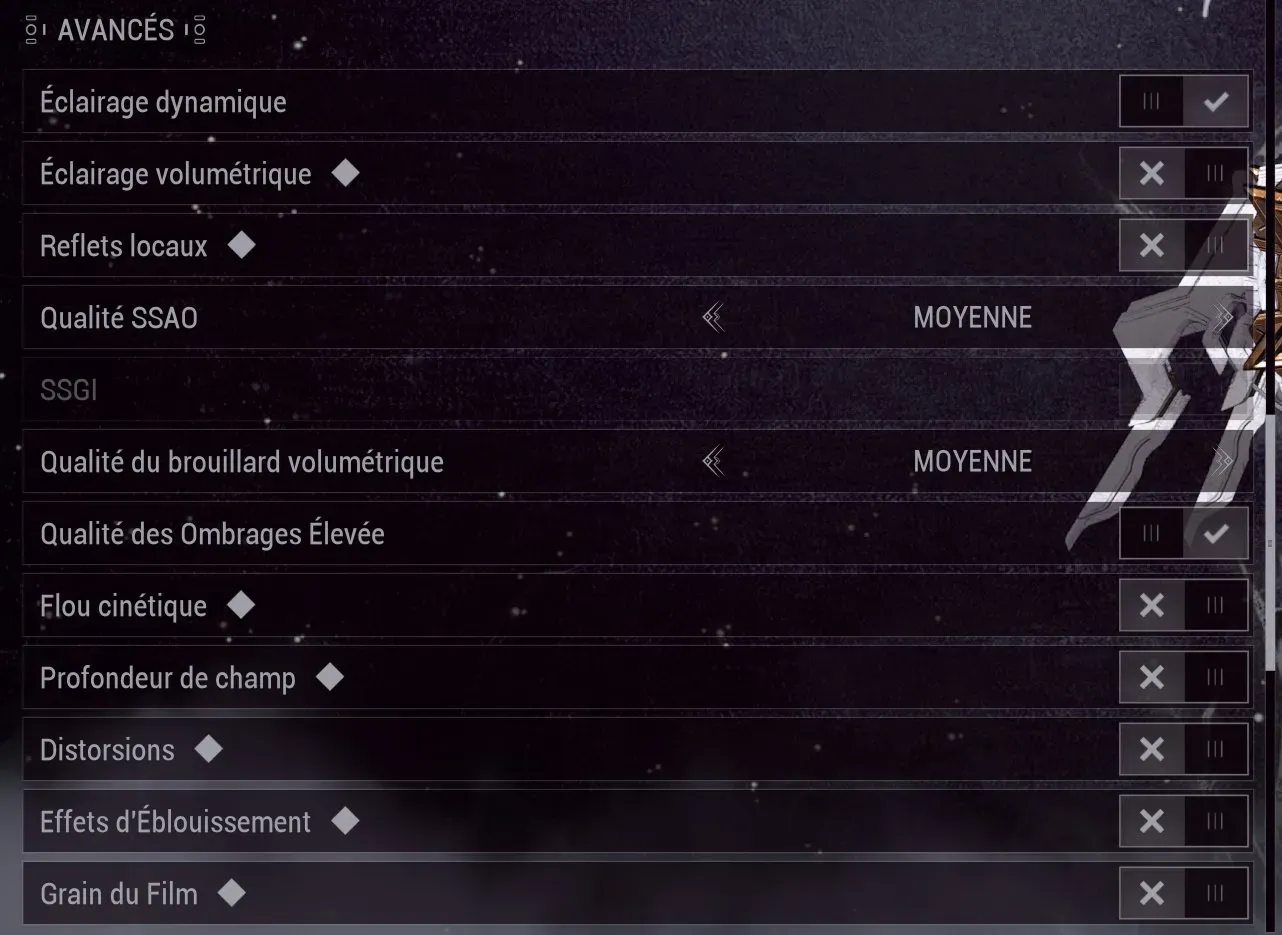
Dynamic LightingMust be kept on. Without it, the image becomes flat and difficult to read.
Volumetric LightingVery expensive in FPS for an effect that is barely visible in fast gameplay.
Local ReflectionsThe pre-calculated reflections of the game are largely sufficient.
SSAO QualityGives volume to the scene. Medium is sufficient, High is too expensive for an invisible gain in motion.
Volumetric Fog QualityMostly impacts open worlds (Plains of Eidolon, Fortuna and Deimos). Medium is sufficient.
High Shading QualityImproves the rendering of your Warframe and enemies. Reasonable cost and visible result.
Motion BlurHinders readability in combat.
Depth of FieldNice in cinematics, annoying in gameplay.
DistortionVisually disturbing and expensive.
BloomNot very useful in gameplay. Disable to gain FPS.
Film GrainPurely cosmetic effect that degrades readability.
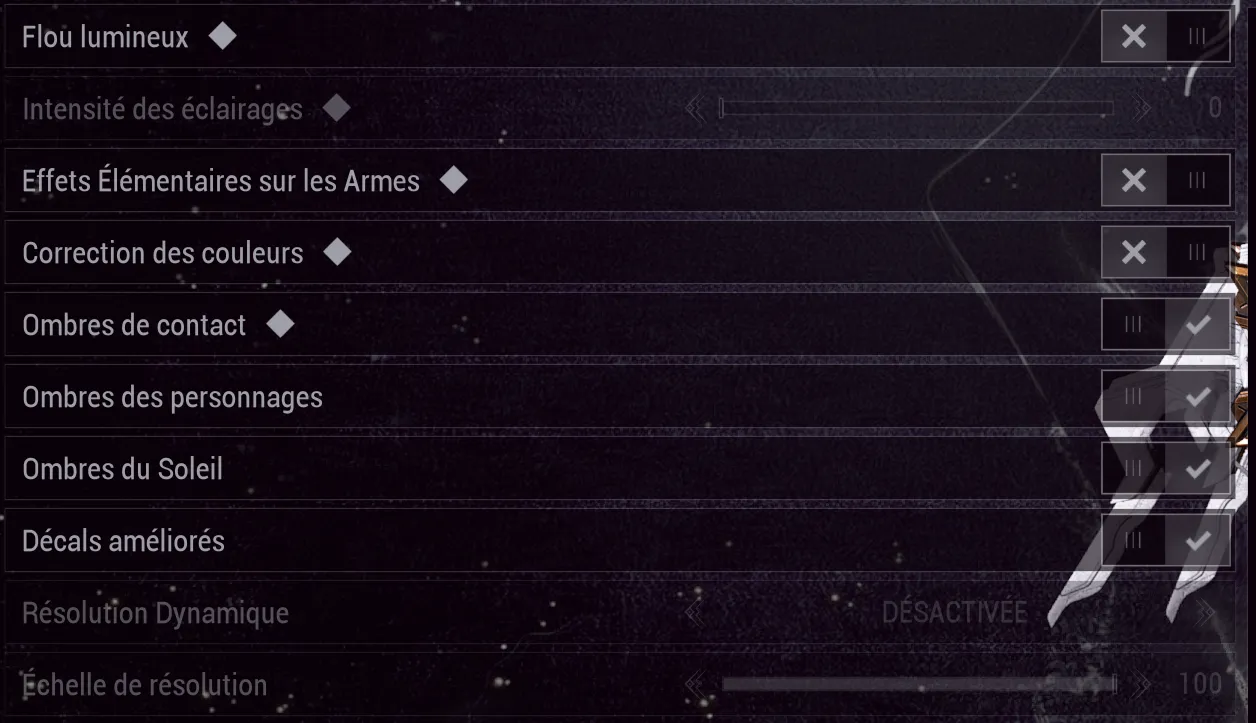
Light BloomBeautiful on screenshots, useless in-game. Re-enable it in captura.
Elemental Effects on WeaponsDisabling reduces particles and improves FPS, it's up to you to choose according to the importance you give to the visual rendering. I'm annoyed by particles.
Color CorrectionApplies a color filter to the scene. Disabled = real colors of your cosmetics. Enabled = more cinematic atmosphere but altered colors.
Contact ShadowsSmall, precise shadows between objects. Low cost and more realistic rendering.
Character Shadows + Sun ShadowsEssential for spatial readability.
Enhanced DecalsImproves impacts and effects on the ground. The cost is moderate and the result is appreciable.
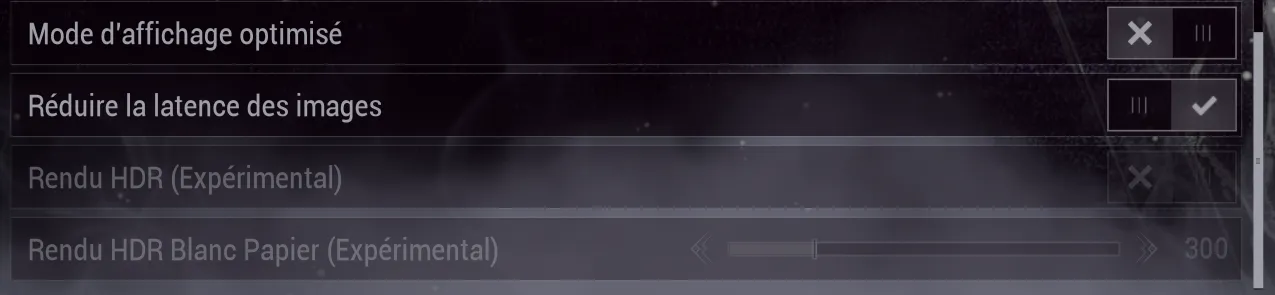
Optimized Display Mode
AMD: leave disabled, FreeSync manages that on the driver side.
Nvidia: enable if you use G-Sync.
Reduce Image LatencyReduces the delay between your actions and the display on the screen. Always enable.
AMD: equivalent to Anti-Lag in Radeon drivers.
Nvidia: equivalent to Ultra Low Latency mode.
Reduce Visual Effects of TeammatesEnable. Some Warframes generate a lot of visual effects in a team, which can impair readability and FPS.
Enable Screen ShakeDisabled. Disturbing in gameplay, especially during long sessions.
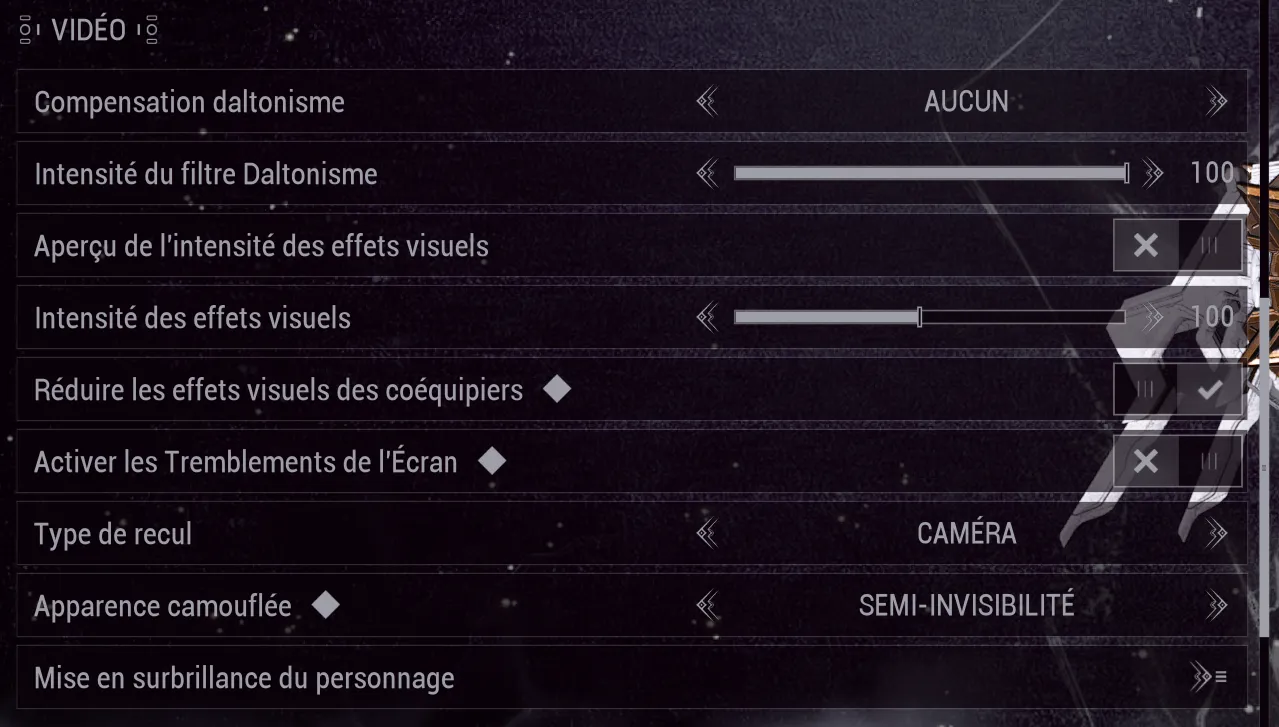
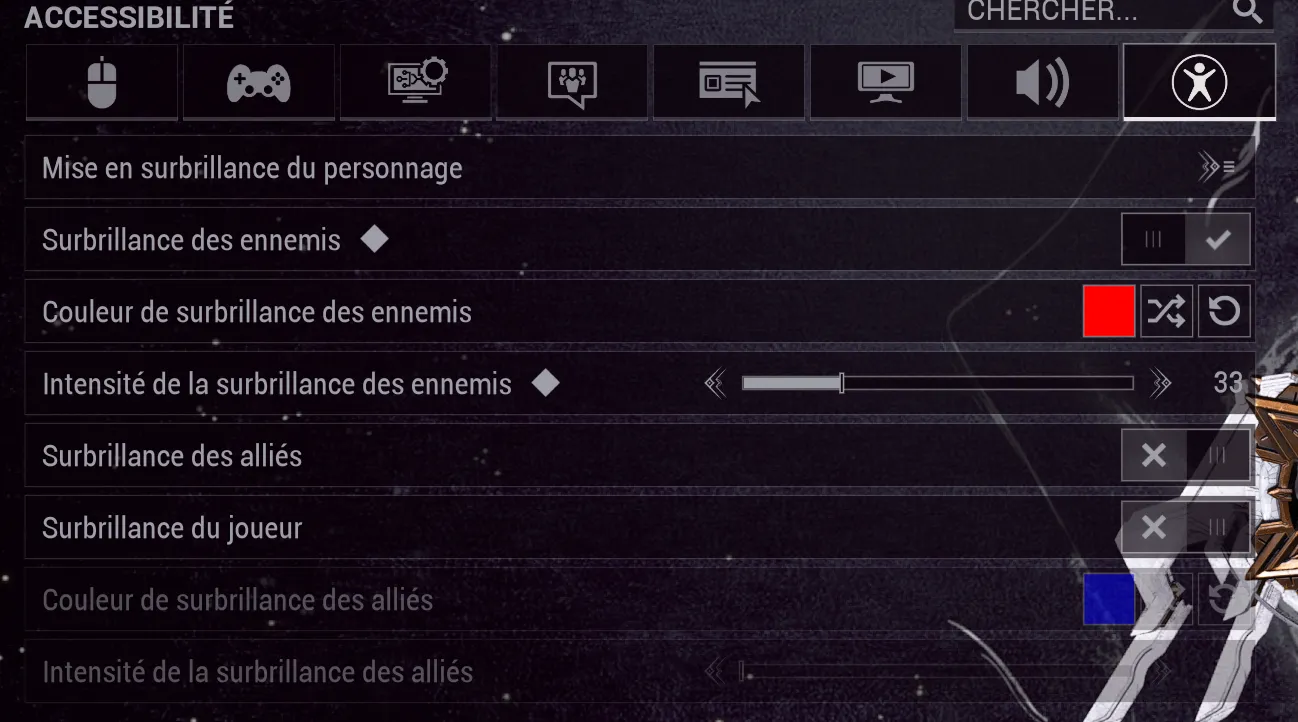
Enemy HighlightDon't forget to enable enemy highlighting to see them better. I personally chose red but it's up to you.
Ally HighlightDisabled, enemies are the priority. Enabling both at the same time can impair readability. Still interesting to enable it for hunting in open worlds.